ARO Pod Installation Tutorial
Get Started with Your New ARO Pod!
This guide is for you if:
- You’ve received your new ARO Pod and want to set it up.
- You need help adding your new device to your Dashboard.
To choose the best Edge Node for your needs, see this guide.
Step 1: Plug In
- Unbox your ARO Pod and remove all contents from the packaging.
- Connect the power cable to your ARO Pod and plug it into a power outlet.
- Use the provided Ethernet cable to connect your ARO Pod to your router or switch.
- Power on the device and wait for it to fully boot up. Once it is online, proceed to the next step.
Step 2: Add Device to Your Dashboard
Ensure you’ve created an ARO Account (ARO ID) and are logged in to the Dashboard.
For account creation instructions, refer to this guide.
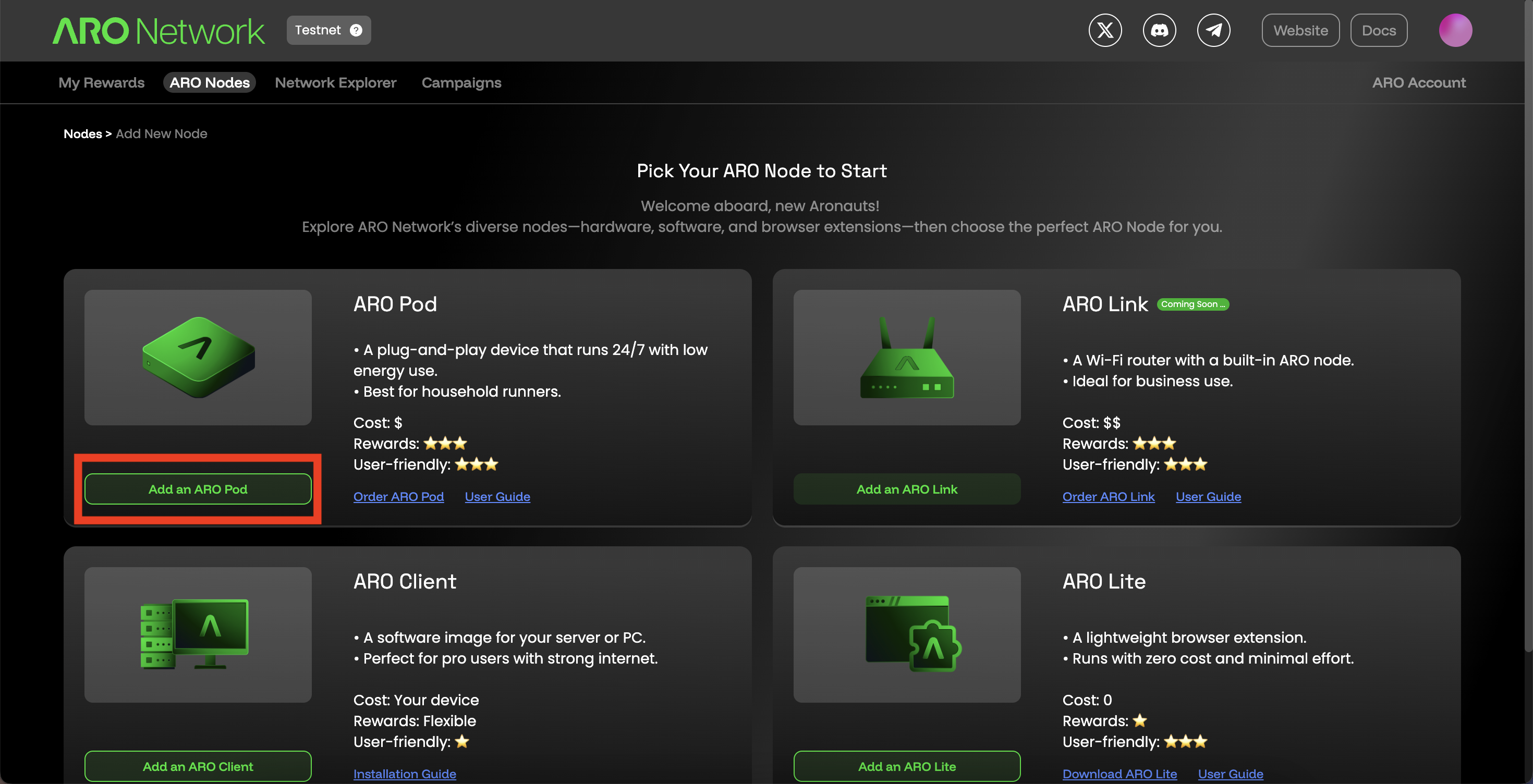
On the Edge Node page in your Dashboard, locate the "Add an ARO Node" button and click to initiate adding process.
Note: Please do ensure the device is online (powered on and connected to the internet) during this process.
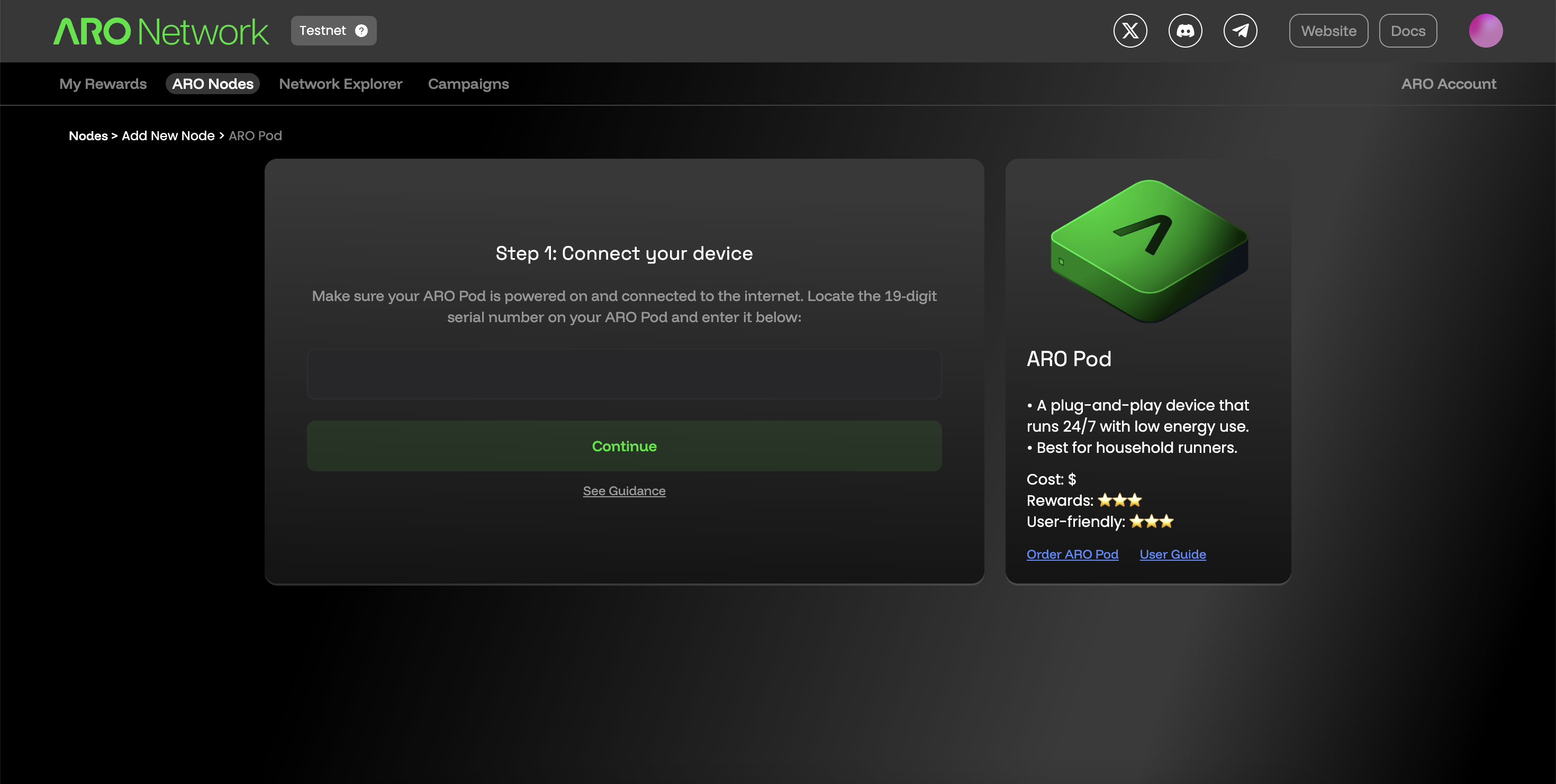
You’ll be prompted to enter the Serial Number (SN) of your device, which is printed on the device label. Enter it carefully to avoid errors.
If successful, the Dashboard will recognize your device, and you can complete the setup with a few clicks.
Step 3: Ready to Go!
Once the device is added, a device card will appear on the Edge Node page. Your first ARO Edge Node is now ready to operate!
Click on the card to check running details of your node.